Kubernetes container deployment application
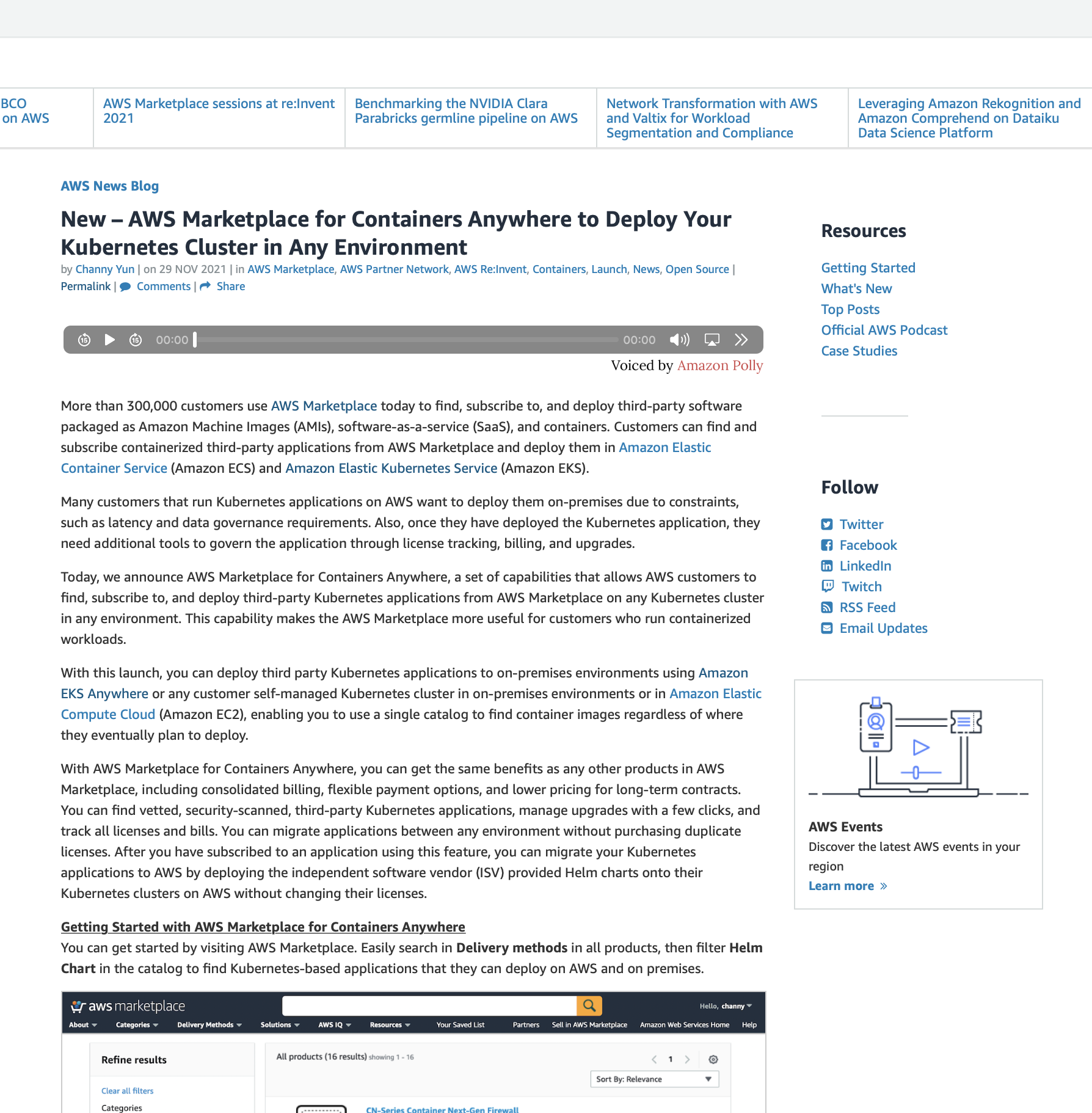
Find, subscribe and deploy kubernetes based container applications.
AWS Marketplace initiated an ability within the container products in to the new and expanding area - 'Kubernetes'.
The goal of the project was to enable customers to move their on premises clusters to AWS by quickly spinning up EKC clusters and helping customers to move to Kunernetes by November 29 @ AWS Re-Invent 2021.
The buyer experience starts from AWS Marketplace homepage. Where buyers can search from available list of softwares. They search for a. specific product or may apply filters. Our goal was to introduce a new feature - QuicklLaunch for container EKS and shorten the learning. curve, provide confidence to our customer to take advantage of free trial product.
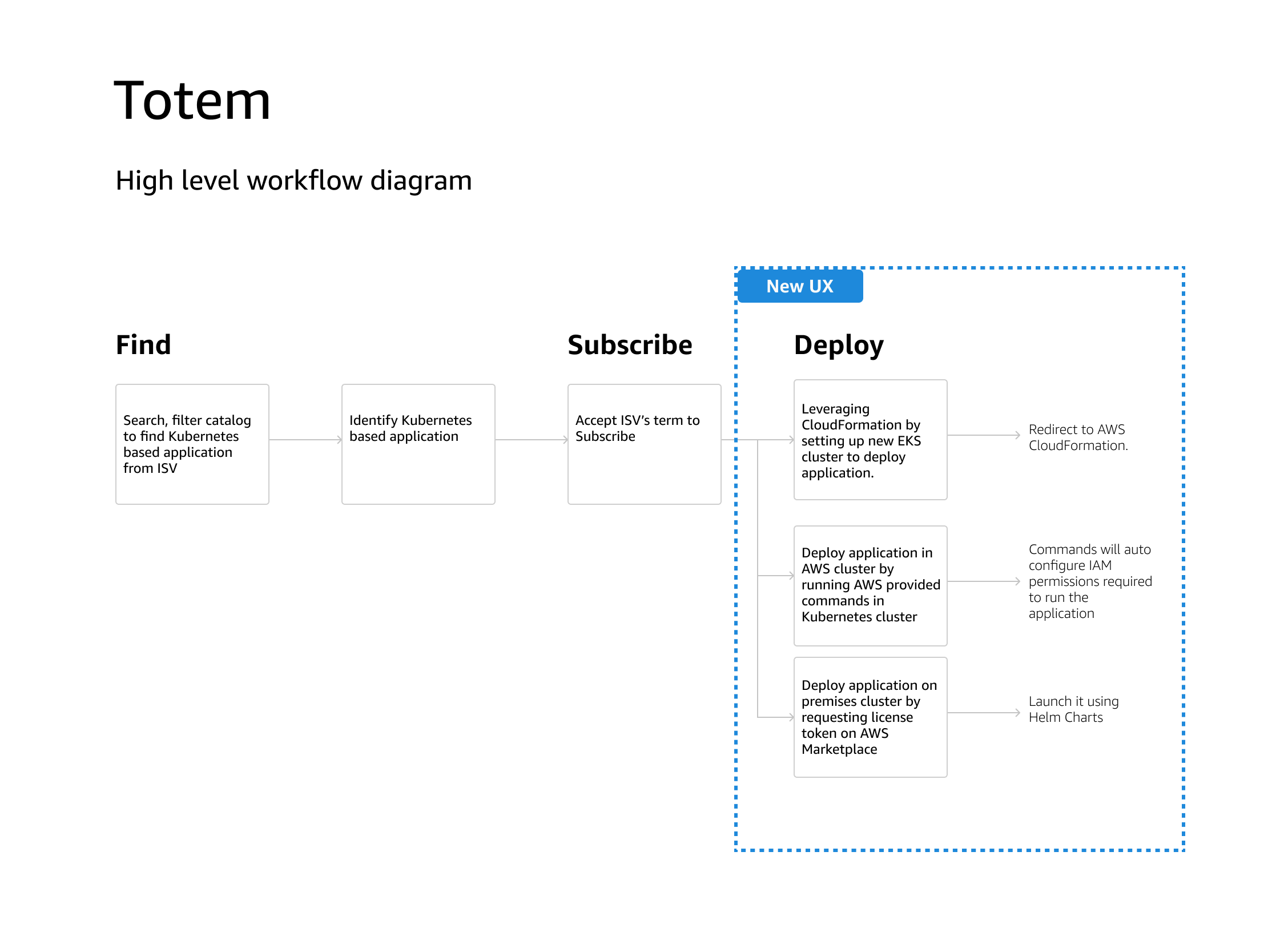
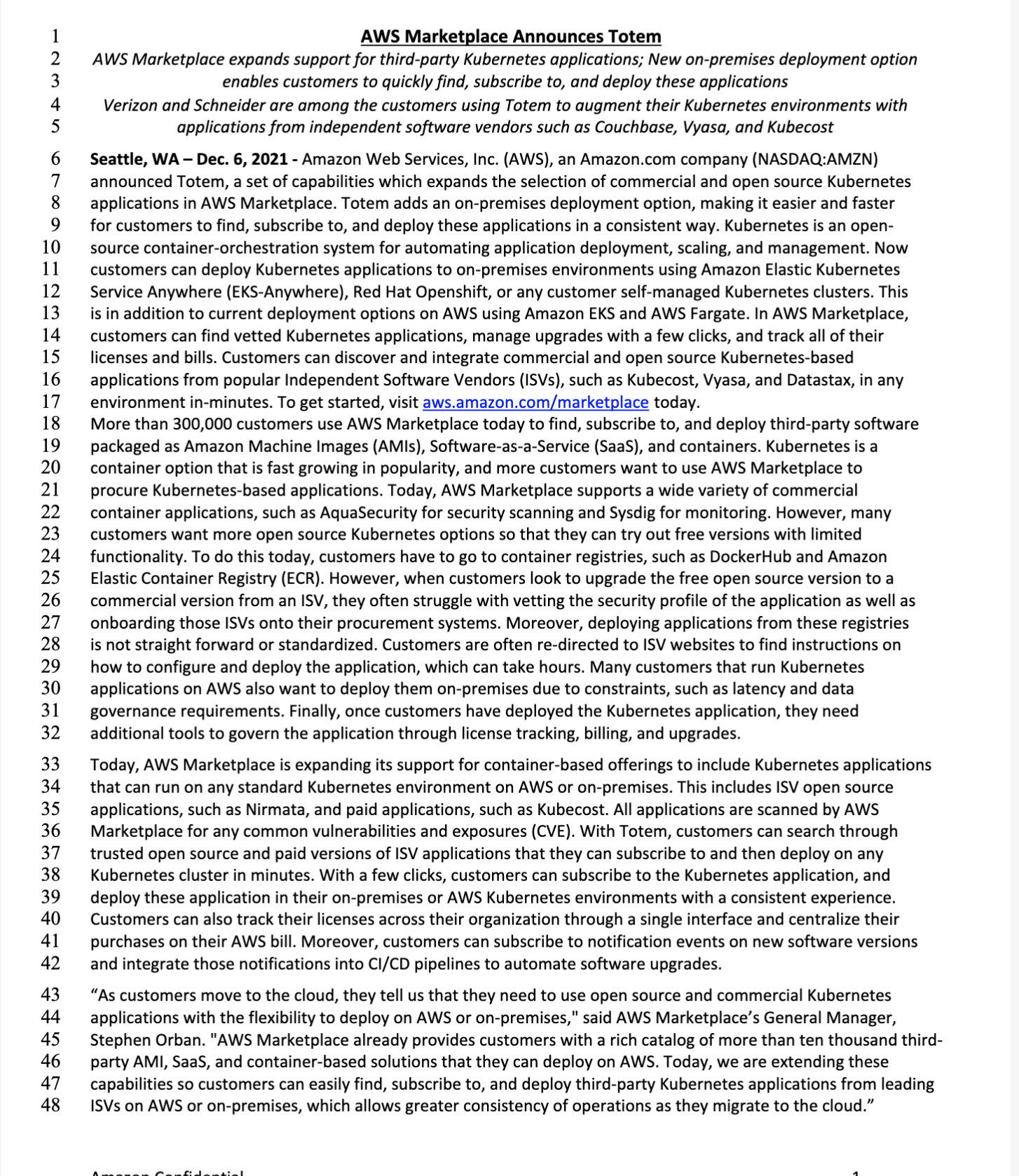
Totem - Kubernetes feature
The feature is imagined to be part the AWS Marketplaces' existing product catalogue.
The challenge -
We wanted to ensure the customer is able to discover the new feature (QuickLaunch with EKS) and launch thier applications using new services.
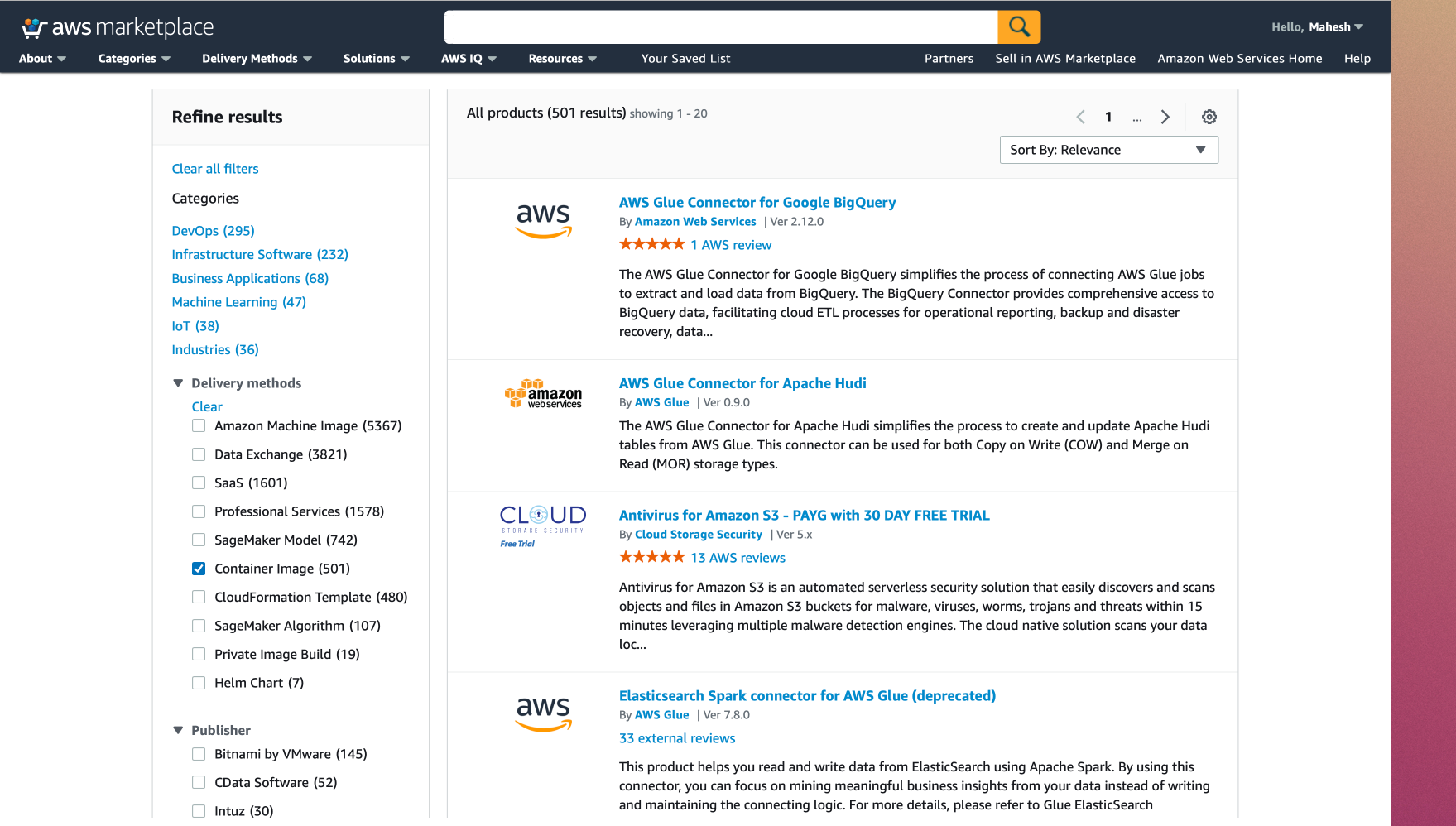
Supported service
Supported services to be added -
1. Amazon EKS A
2. Self managed Kubernenets.
Self managed kubeneres label was reviewed with tech writing and user tested with customers to check if they get it right.
The label was perceived in positively way by our customers. They understood if they choose this option, that means they have existing clusters and will manage the same as AWS Marketplace won't be managing on their behalf.
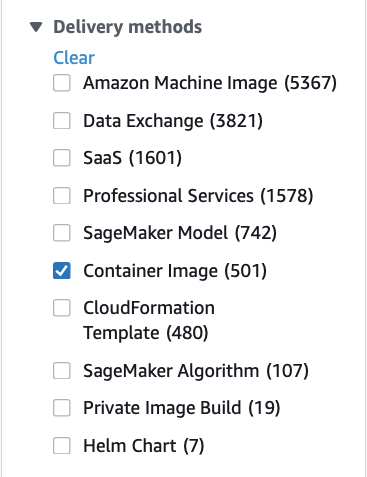
Helm Chart
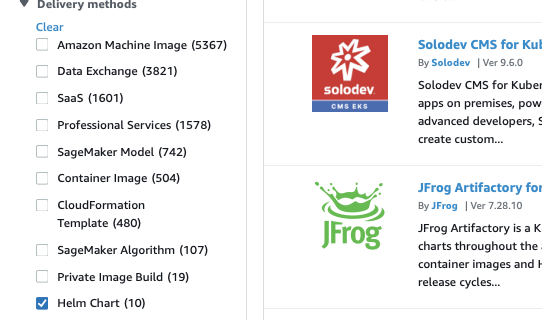
Ability for customers to filter out the products supporting the helm charts.
QuickLaunch within - Amazon EKS
A new feature part of the project Totem. With this feature customer can deploy an application by spinning up new EKS cluster.
QuickLaunch
The new feature being launched within the helm and container products needed visibility at the early stage of buyers product procurement journey.
There were 2 areas the page would be visible
1. At product list level
2. At PDP page
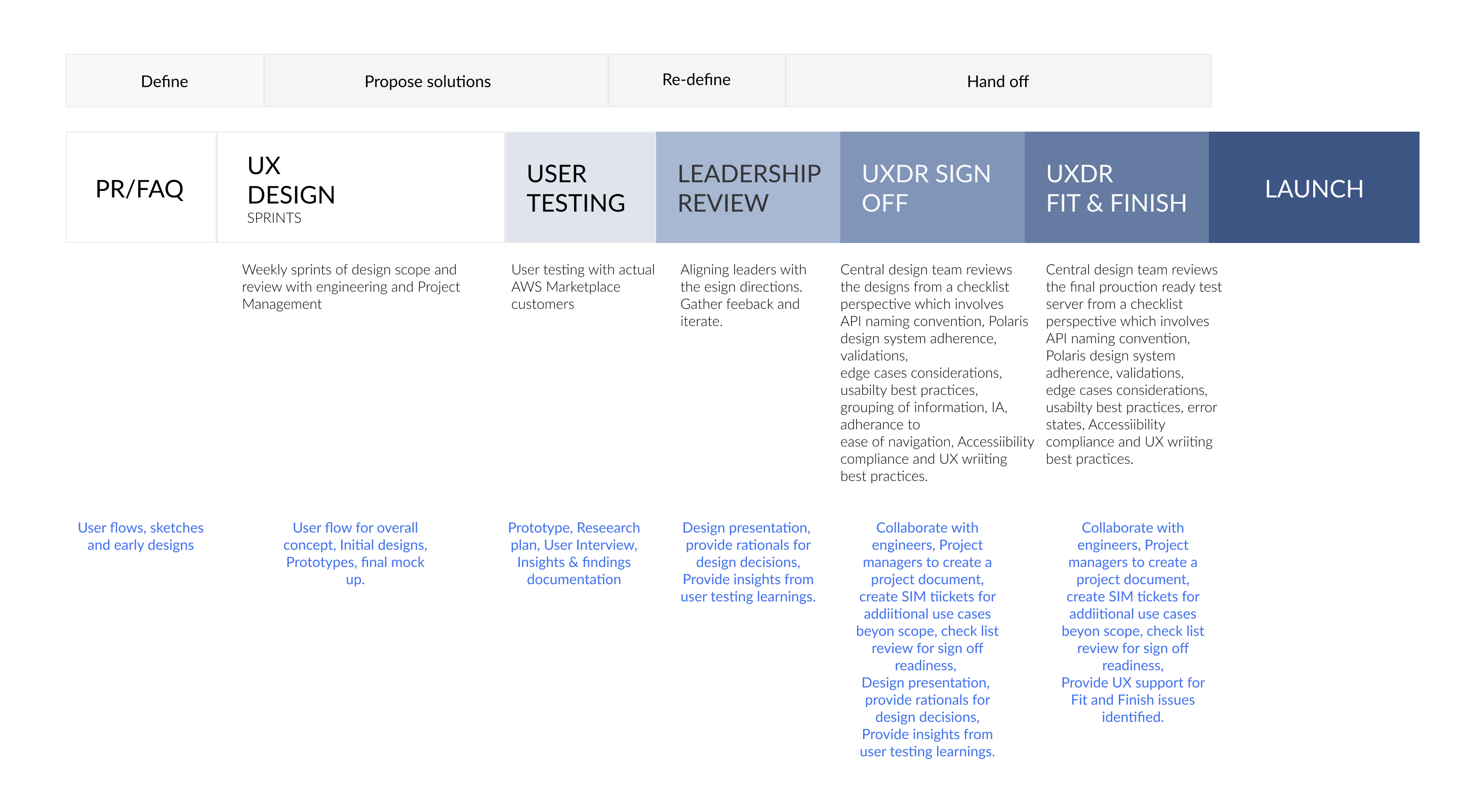
The iterations created and reviewed with UX team, Polaris design system experts and finally with UXDR central design team for launch approval.
We user tested the options with customers, and found that customers responded positively to Option 2.
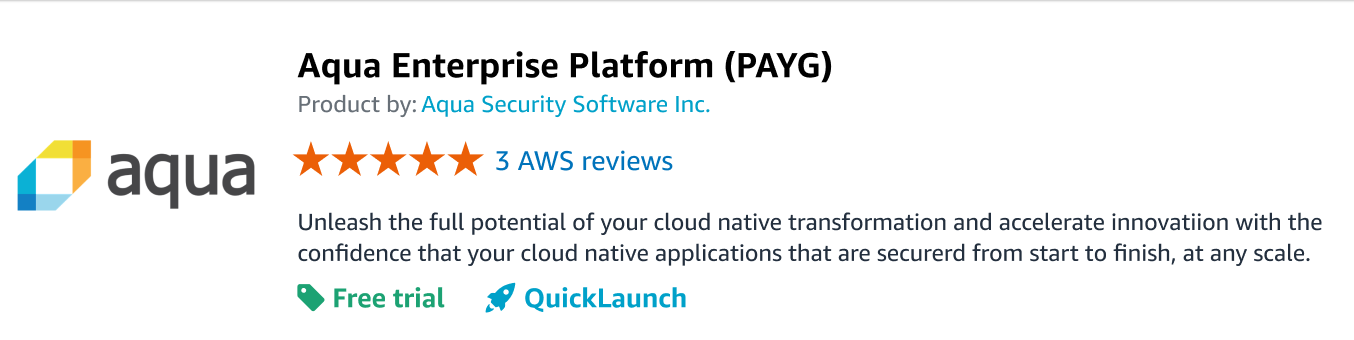



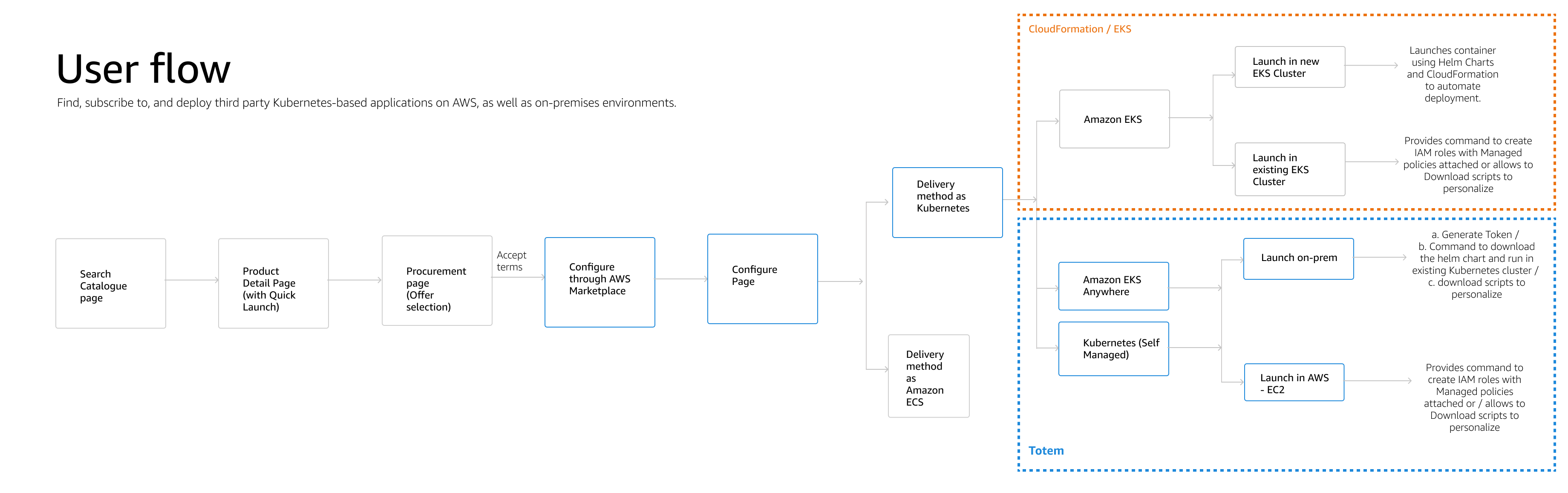
This launch has 2 parts which are under Kubernetes as delivery method. This captures the overall user's journey from AWS Marketplace search page all the way to Launch page.
1. Quicklaunch using Amazon EKS
2. Launch manually by copying code provided with Helm chart
QuickLaunch card
Introduction of new feature which allows customers to quickly deploy application by spinning up new EKS cluster.
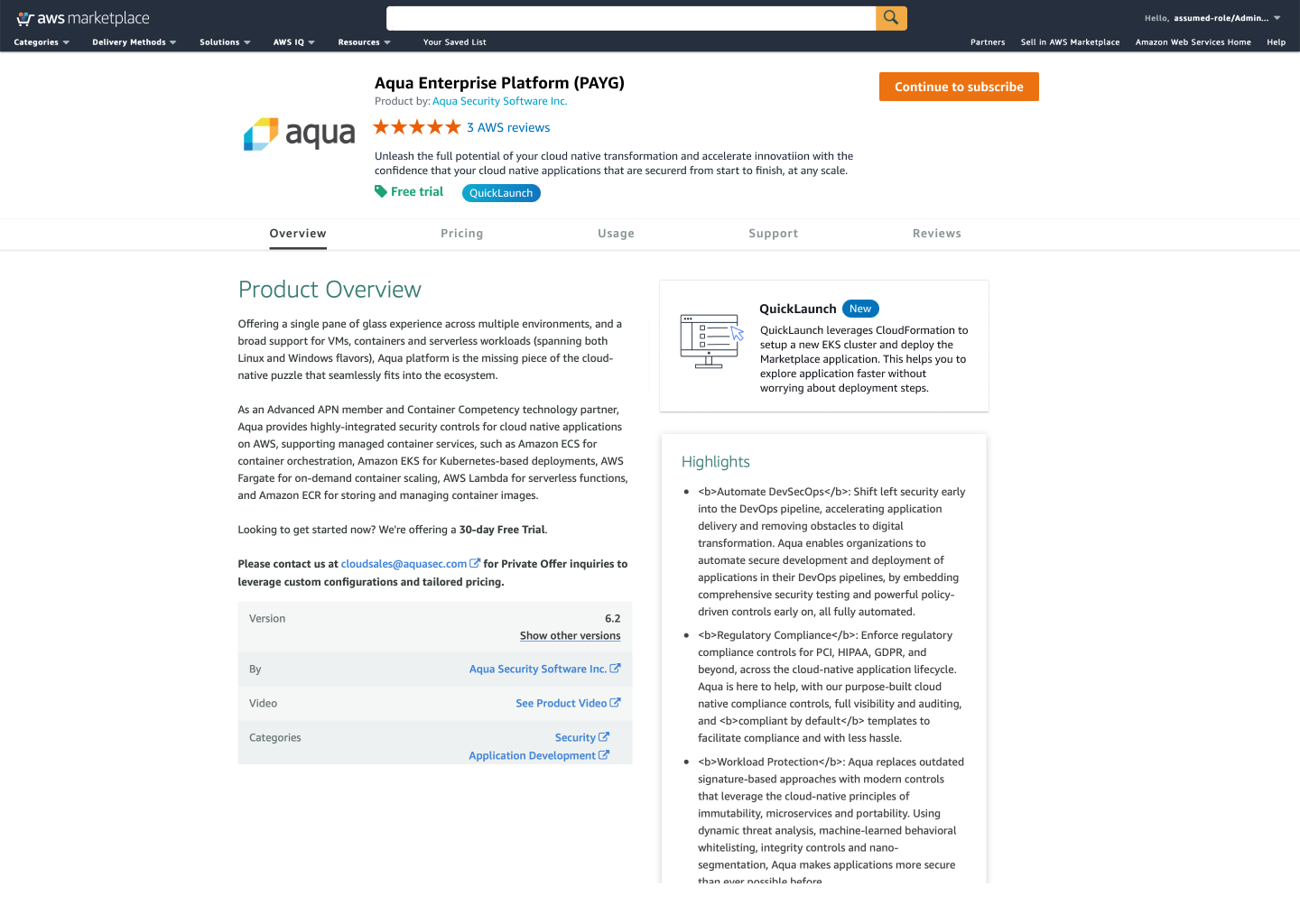
Introduction to QuickLaunch feature on PDP required high visibility. The buyer persona here is either a DevOps engineer or Cloud Architect. The hierarchy and placement for this new card should be such that it does not shift the focus from product overview and yet easily discoverable by customers.
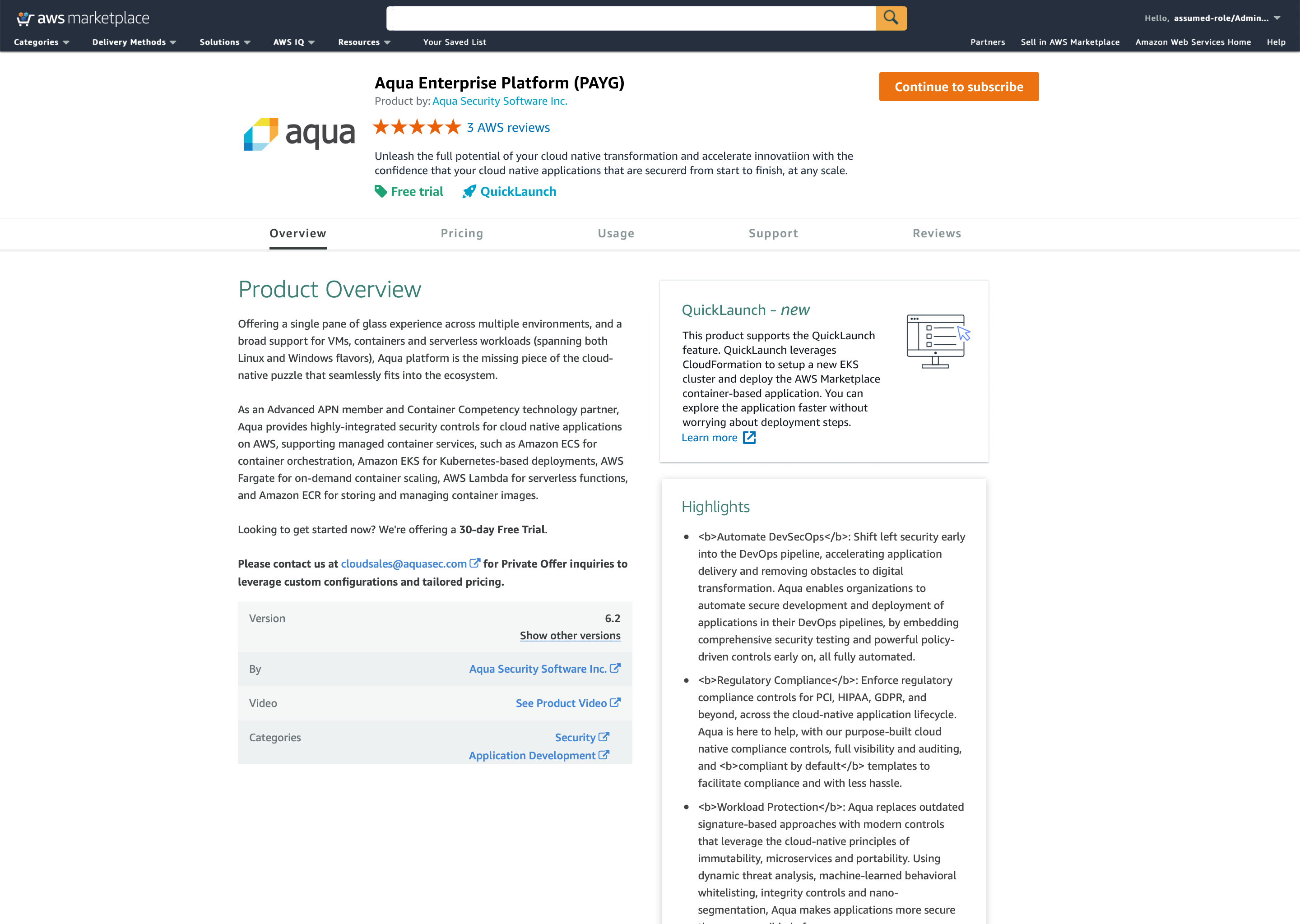
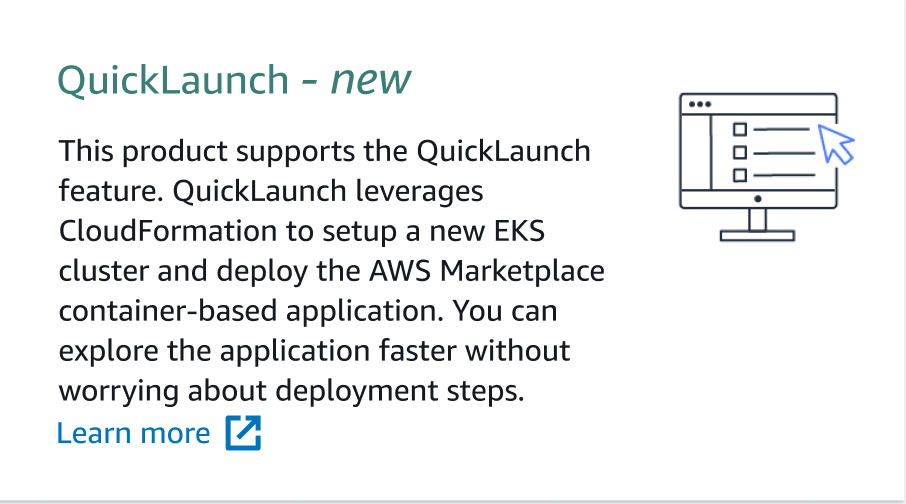
The new feature card was designed in POLARIS design language however it was styled to be blend with LEGACY UI which current PDP layout follows.
The description was reviewed with the team and tech writer to ensure that it provides customers information to take decision and act.
A Learn more external link, directs user to the documentation page, which was proposed by UX.
Additional service under Amazon EKS -
In the existing Usage page under the fulfillment option EKS added a list of newly supported services. Also provided additional details for new feature QuickLaunch.
New Learn more link was added as well to redirect user to documentation where they can understand the additional information about the various service types.
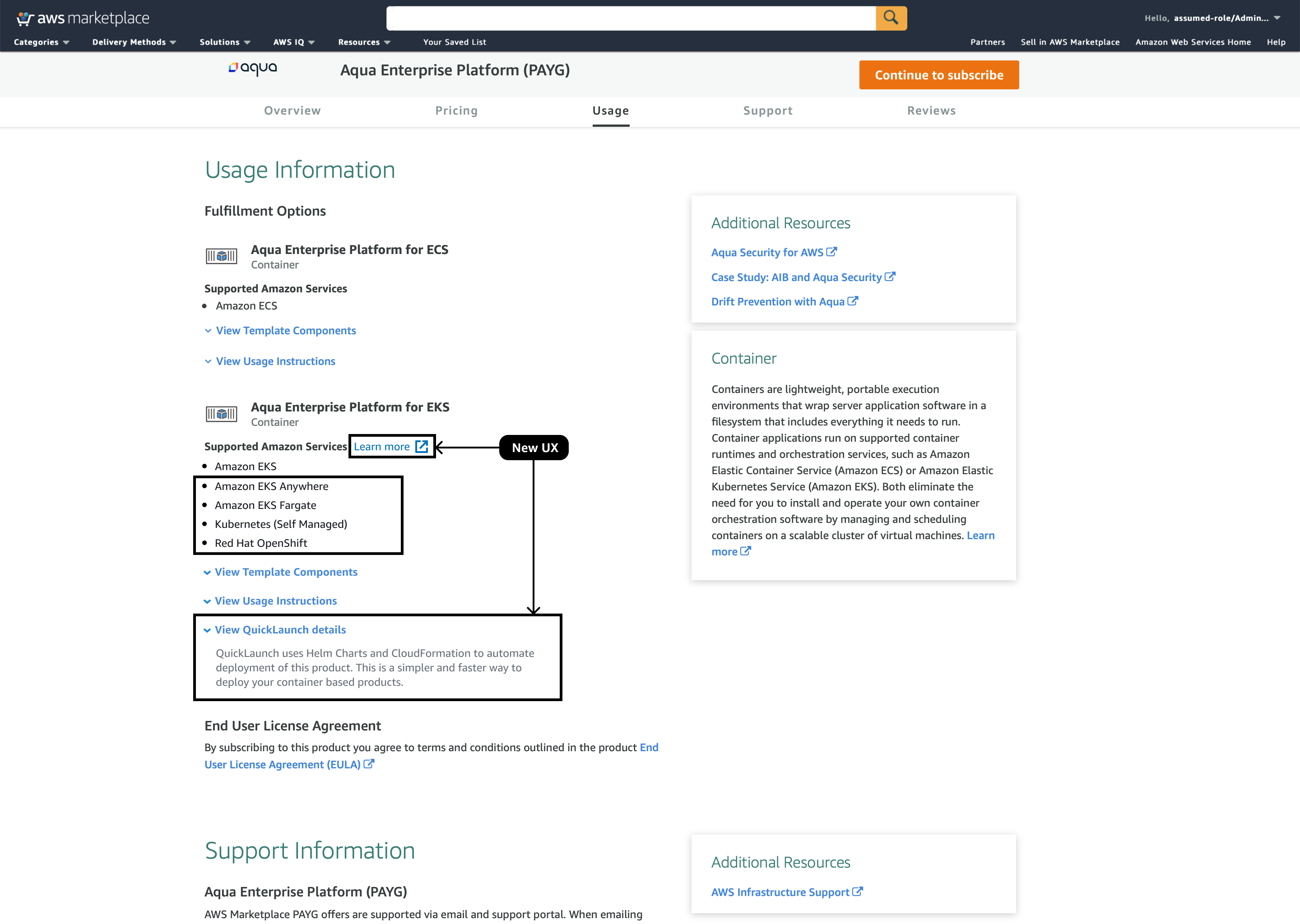
Usability tests and central design team sign off -
The usability tests conducted revealed that customers find it hard to differentiate between various supported services. Also, since the number of fulfillment options will only grow in future, this will lead to increased cognitive load on the user.
Therefore, Option B was finalize where there is a short description provided for each Amazon supported service and a learn more link to learn about the additional use cases.
This approach was positively received by our customers in the usability tests conducted.
Example.
Amazon EKS - "Deploy in Amazon Kubernetes Service, in your AWS account, Amazon EKS manages your Kubernetes cluster for you."
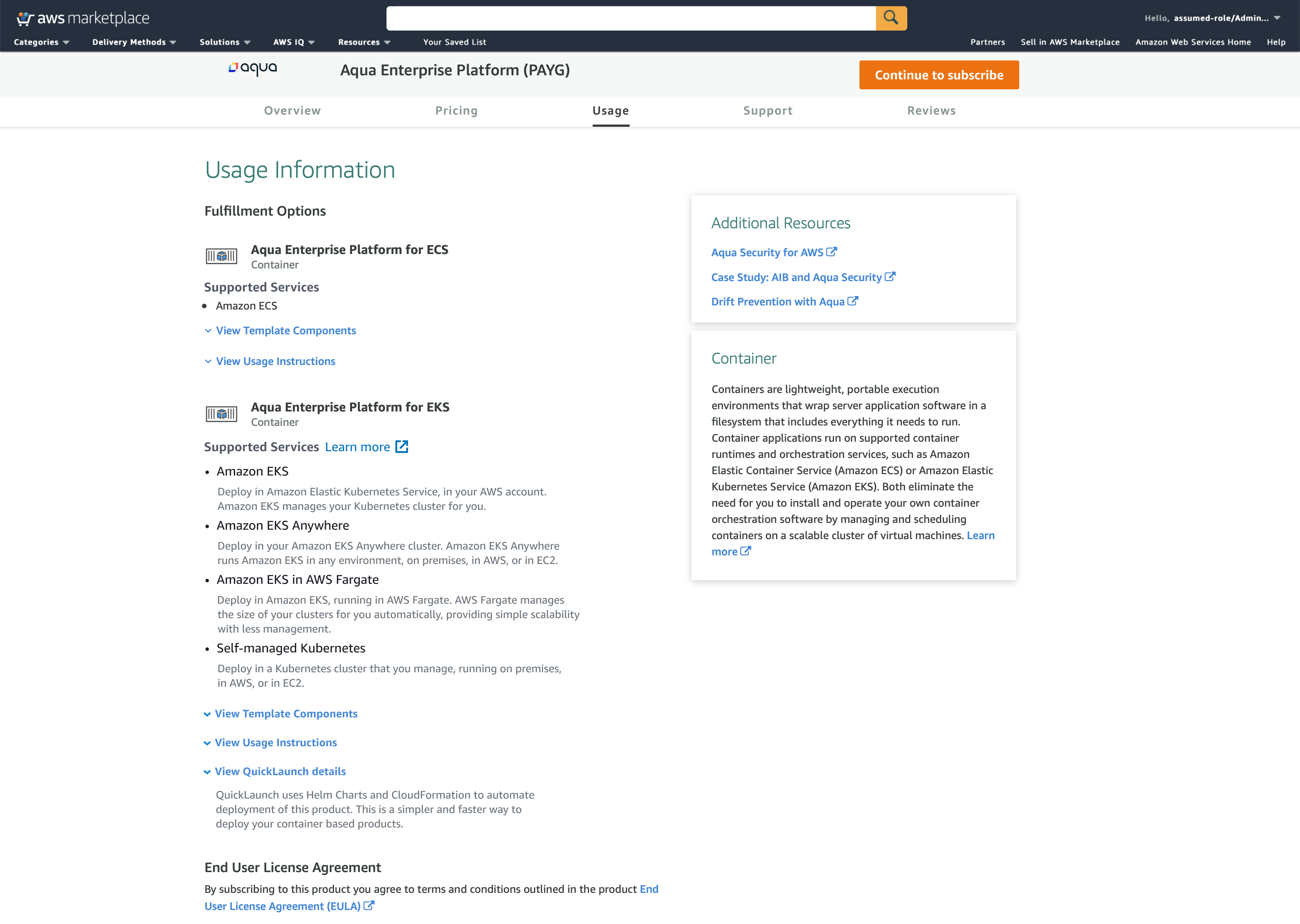
In the existing Subscription page with this launch,there are 2 paths a customer can take.
(Refer to NEW UX in the screen)
Path A
Configure with QuickLaunch
Path B
Configure with AWS Marketplace
The challenge -
Making a Decision Box:
For path A -
A buyer must know that they will be redirected to another AWS service called CloudFormation, and they can leverage the service to create a new EKS cluster if they don't have one already.
They must also know the benefit of using QuickLuanch as - deploying faster without worrying about deployment steps (try out the software faster).
Path B -
Buyers must be able to clearly differentiate this from path A.
Congintiitve load -
The subscribe page also has offer selection. It creates high cognitive load as buyers can see multiple call to actions in one page.
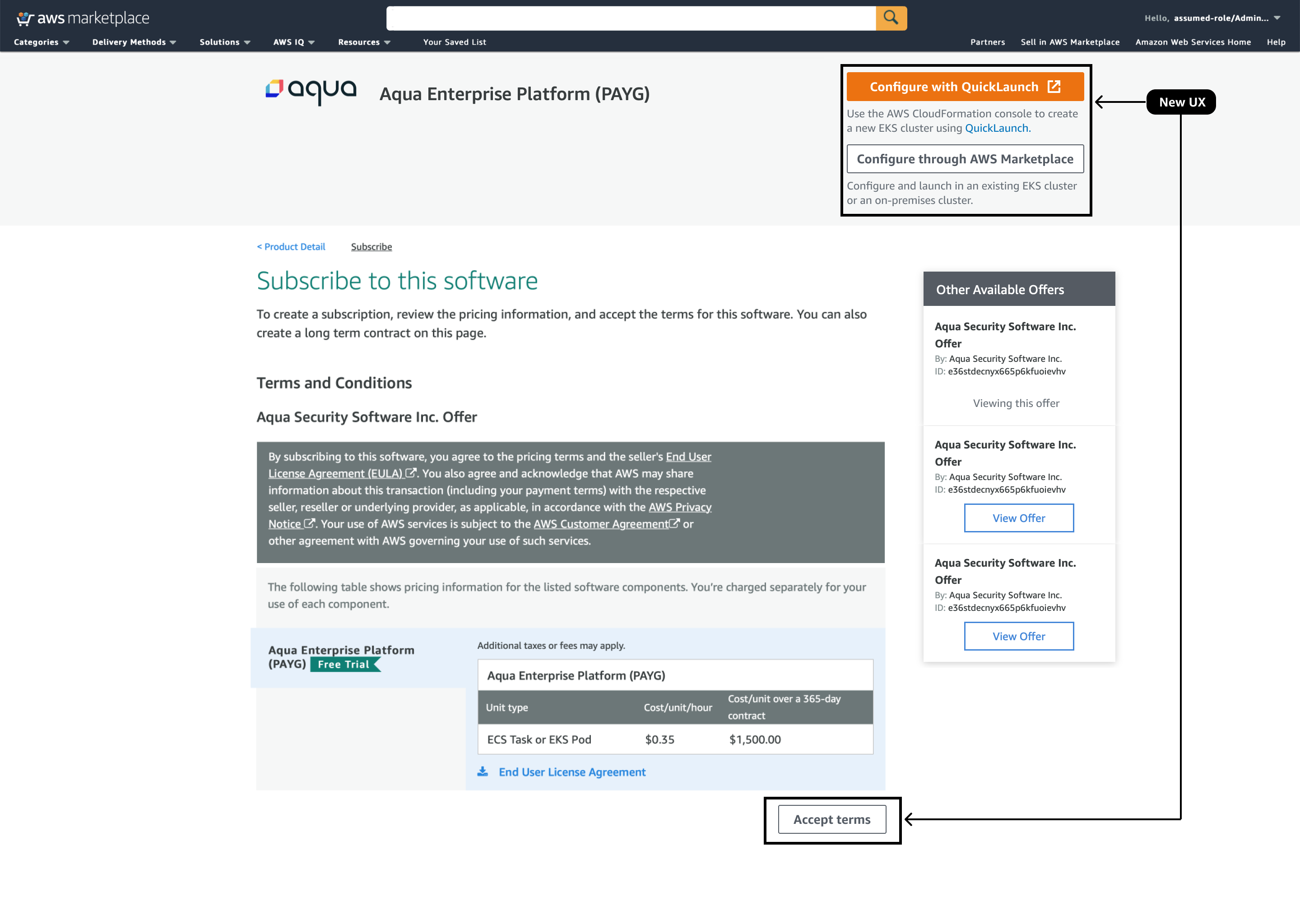
Customer context:
Many customers are from various small, mid and large scale companies. These customers try out various products which suits their business needs. There are lot many customers familiar with Amazon Machine images, and SaaS for the ease of subscription and cost effectiveness. However, container product with self or amazon managed clusters gives them greater flexibility and speed to deploy applications. Many organizations are trying out Kuberenets based application as a step toward moving towards container based products.
The decision to choose between QuickLaunch and Configure through AWS Marketplace is crucial and it will be hard for consumers to decide between these options.
The approach above provides two CTAs at the top section and each has instructions text proving the customer contextual information.
This approach was tested with our customers, we got mixed response. Many customers were not able to differentiate between the two options.
Configure with QuickLaunch - Doesn't provide clarity to users about the default cluster and version.
Configure with AWS Marketplace - Many customers couldn't really differentiate on how this option is different than the other.
Pain points:
Customer were also trouble as they could find 5 CTAs. This added the cognitive load.
View offers - This part is part of another initiative where the multiselction of private offers was move under a dropdown at top. But this was out of scope for current 2021 launch.
The two CTAs at top still had mixed feedback from the customers. Hence, I created another iteration.
Usability tests and central design team sign off -
The two CTAs on top section received mixed feedback, option B minimizes the cognitive for customer.
Continue to configure- The decision box on top was replaced with single CTA. This was customer can accept the terms and choose to continue and land on configure page to take more informed decisions.
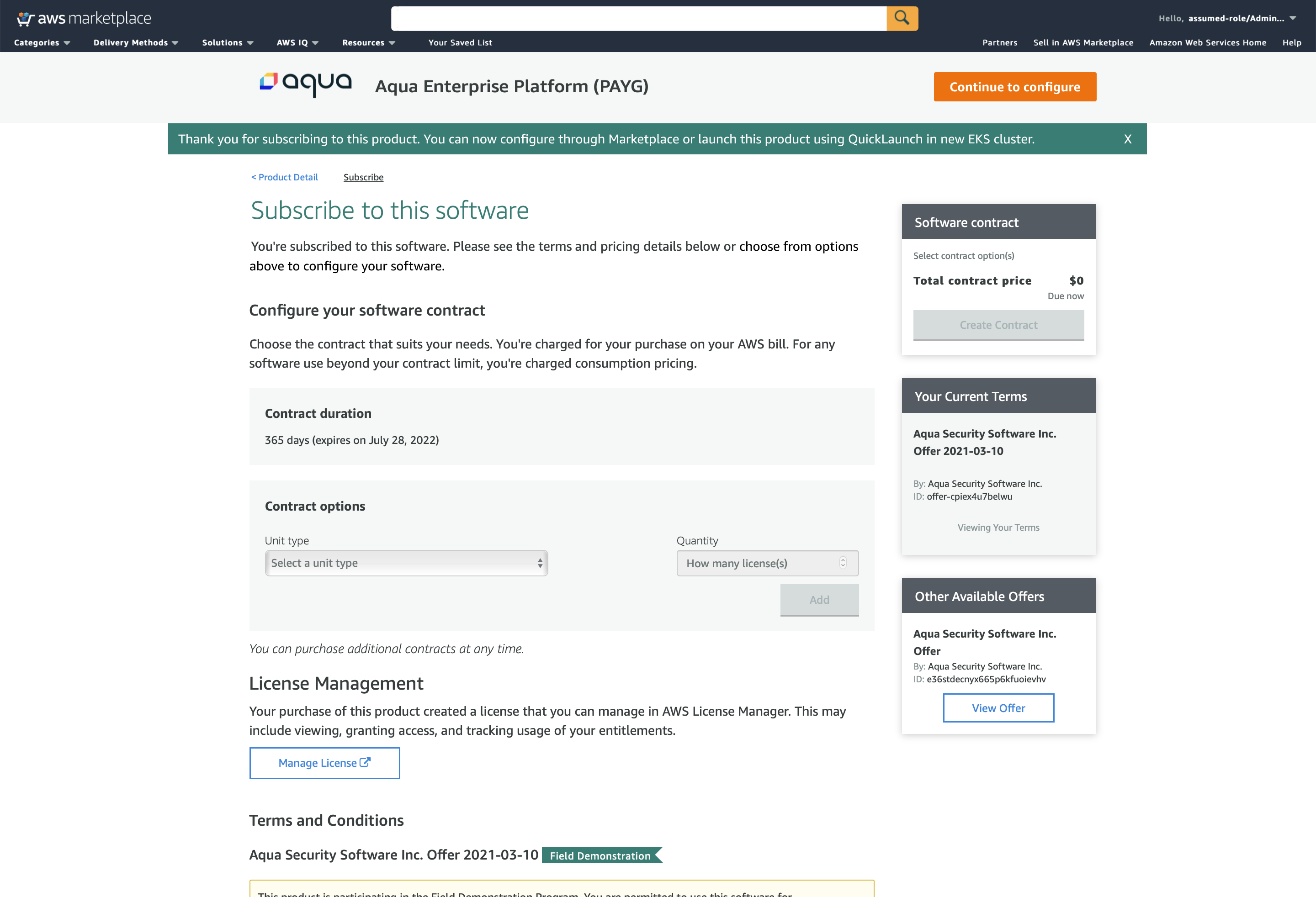
In the existing version, configure page provides ability for customers to select a delivery method and software version.
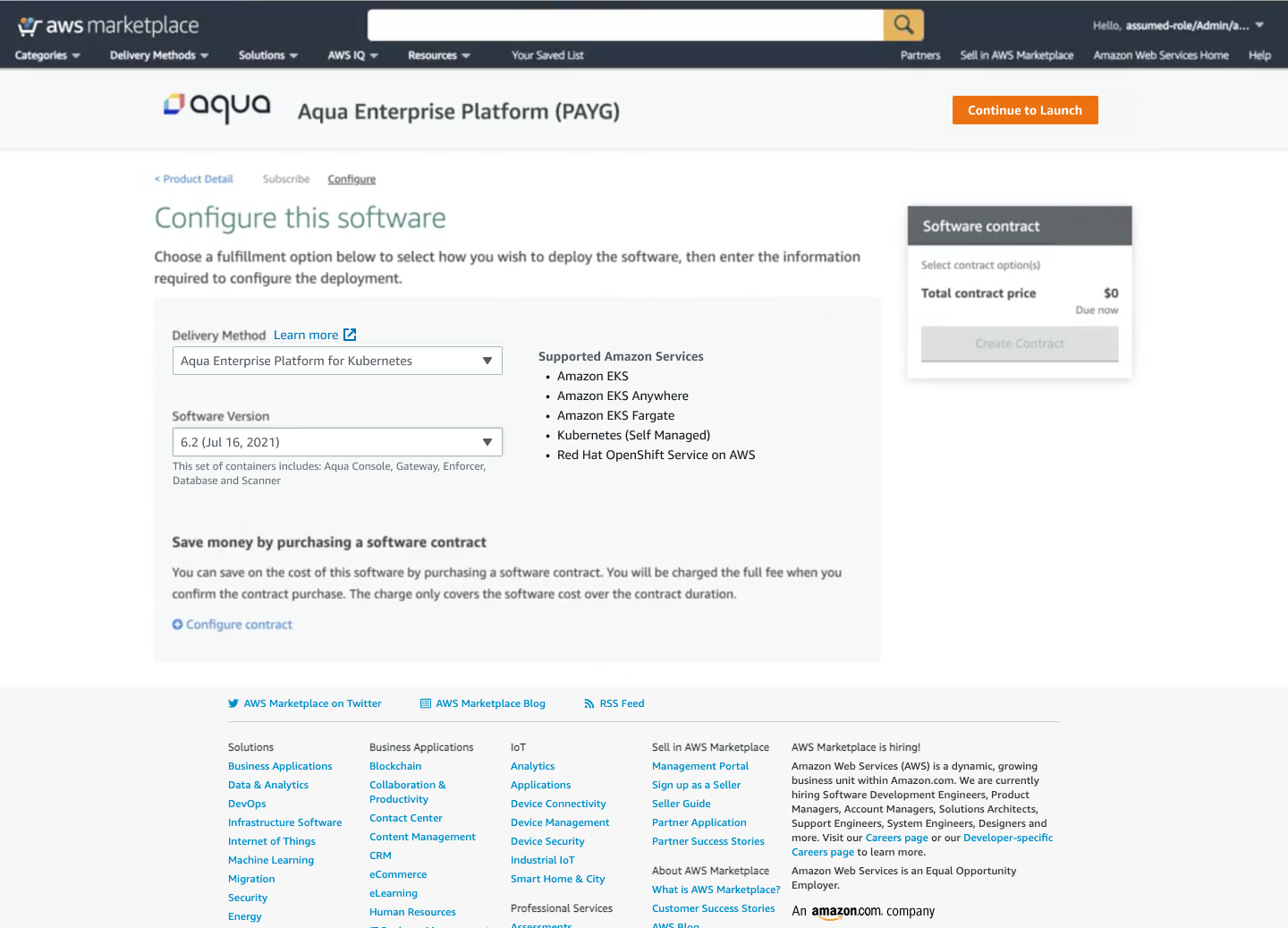
Configure page
(re-designed)
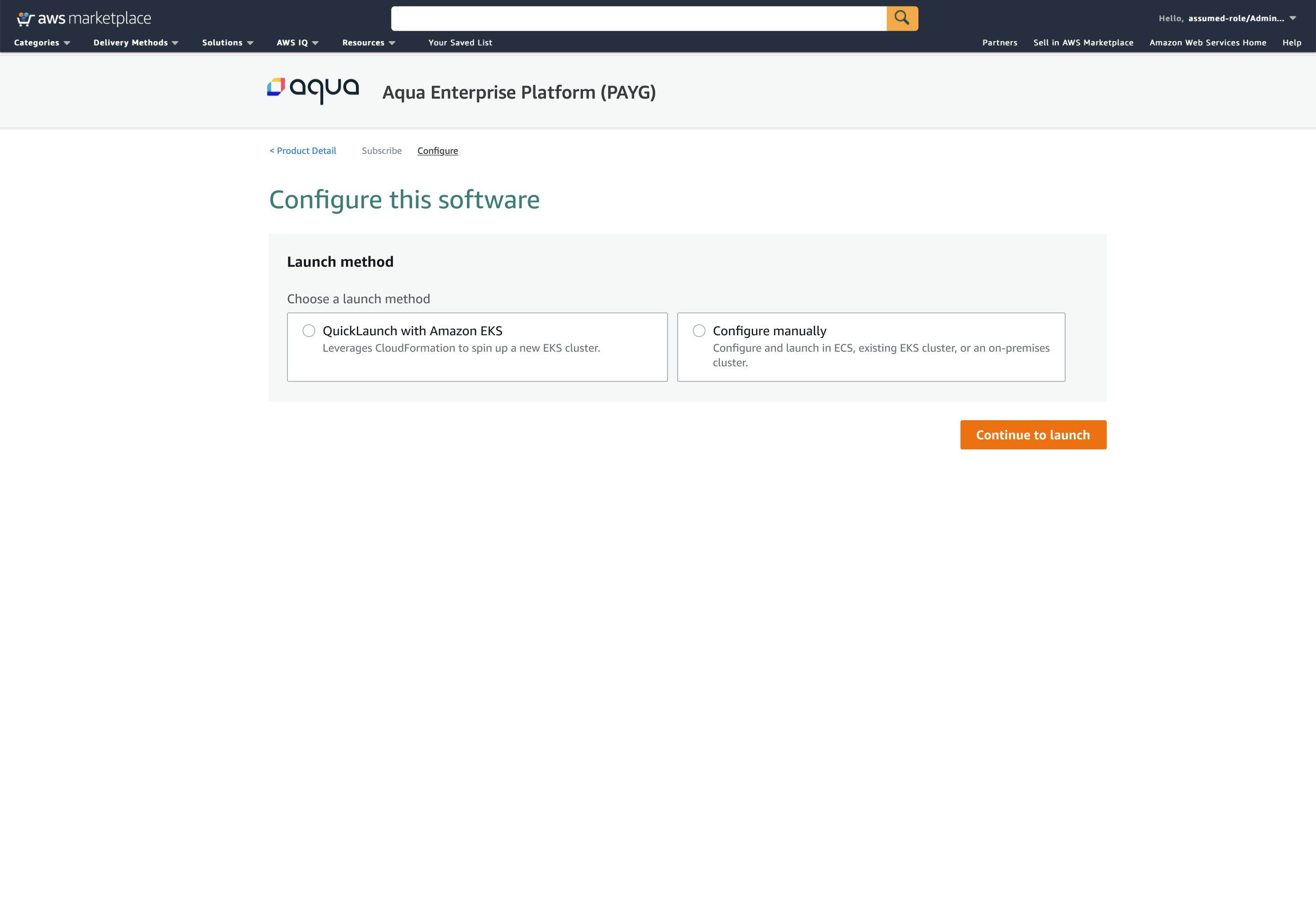
The old configuration page was re-iterated with a dedcated section select a Launch method.
Users can select from options -
A.
QuickLaunch with Amazon EKS
B.
Configure manually
The radio tiles provides descriptions for each selection. This helps customers to decide with ease.
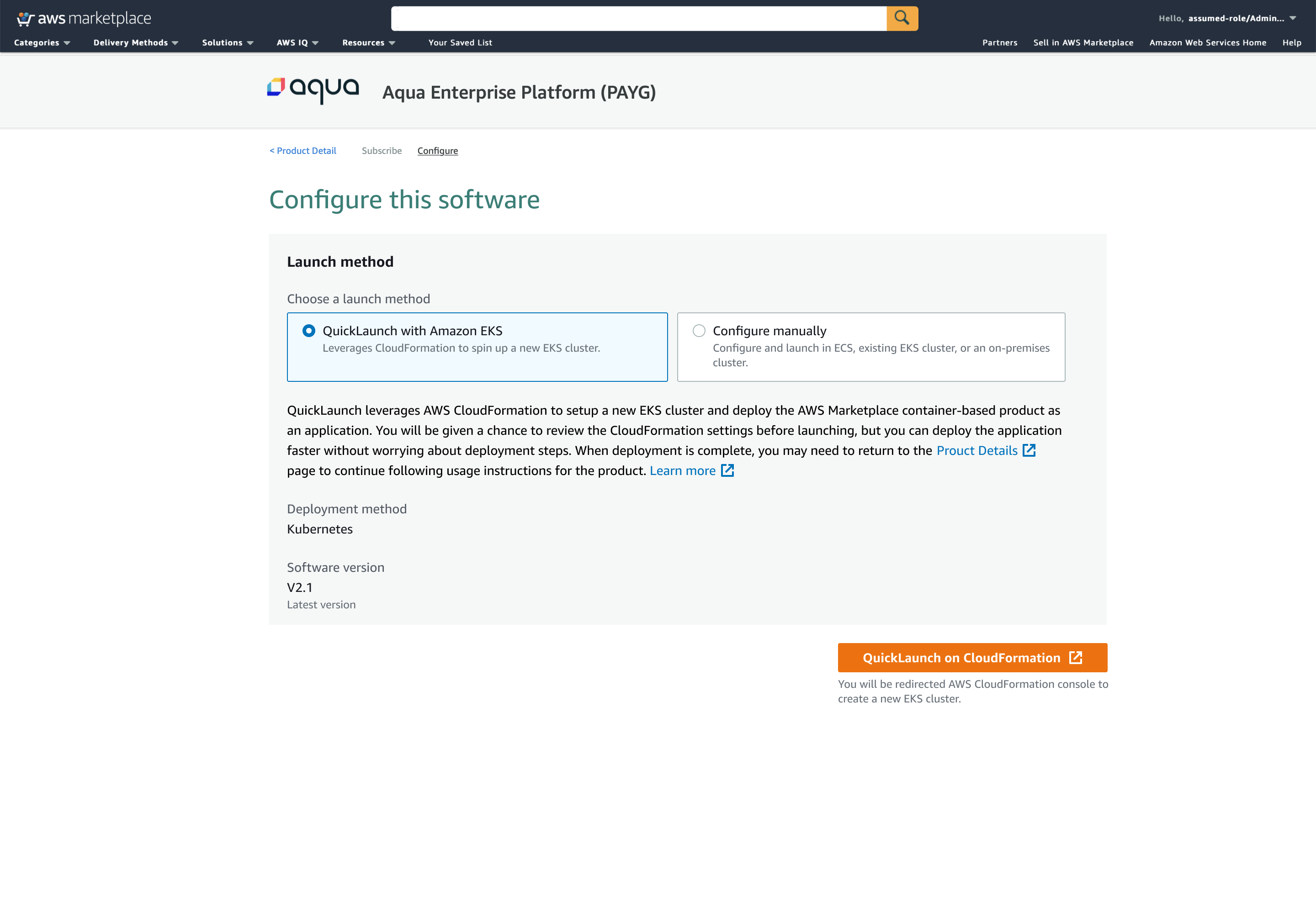
QuickLaunch with Amazon EKS
With this option, customer can learn about the benefit of creating a new EKS cluster using QuickLuanch. The description also sets an expectation around what they can expect.
For example -
Customers are informed that they will be redirected to another service 'CloudFormation' where they will be able review settings and once deployed, they can come back to product details to continue following remaining usage instructions.
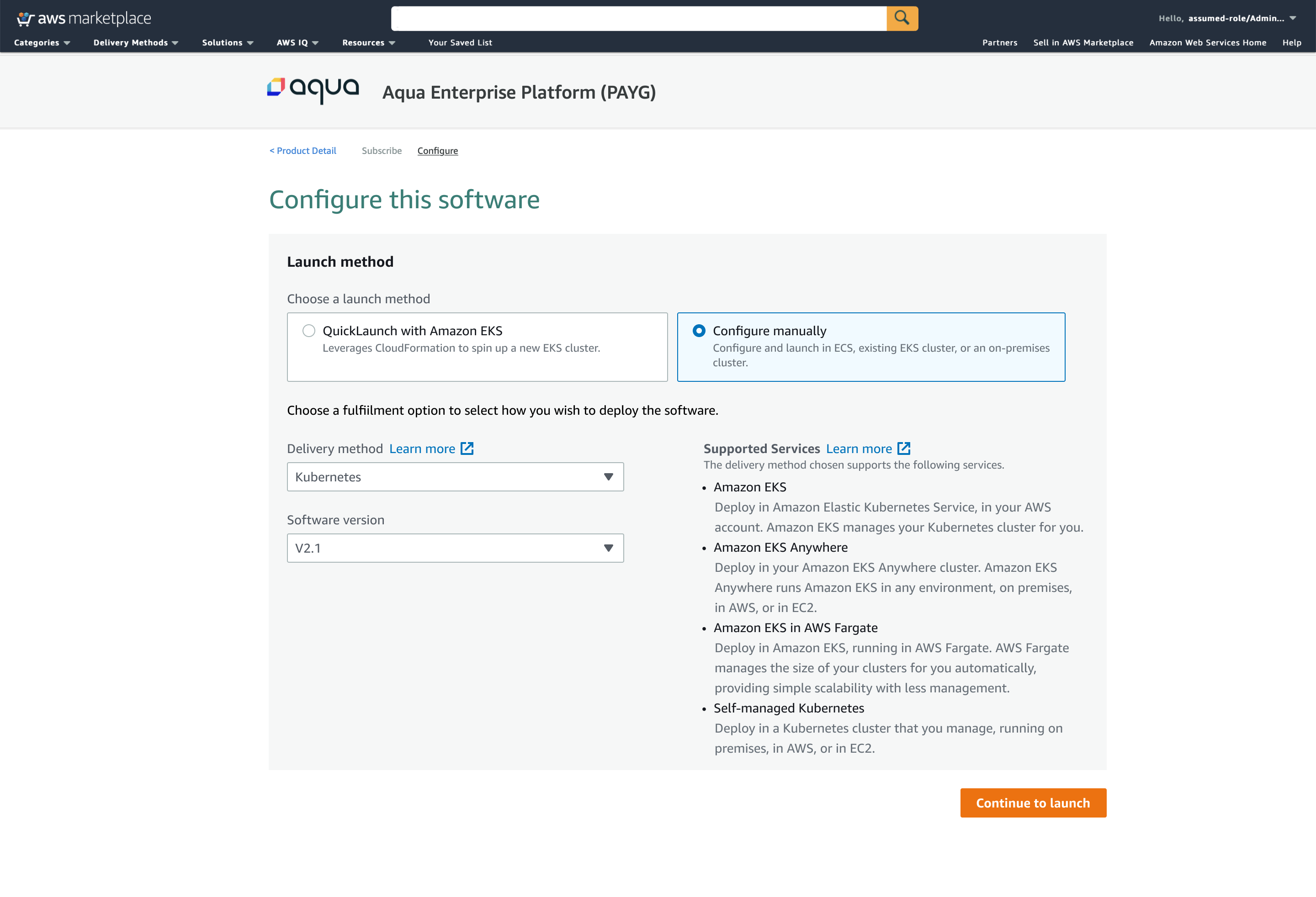
Configure manually
With this option, customer can learn how this option differentiates from the other radio selection.
This option allows customers to select delivery method, and software version. This also provides them details around list of Supported services for their selection along with the descriptions for each service.
The launch or deployment process is manual (command based)), which means developers have to follow the steps and use the commands provides in the form of helm charts to deploy it.
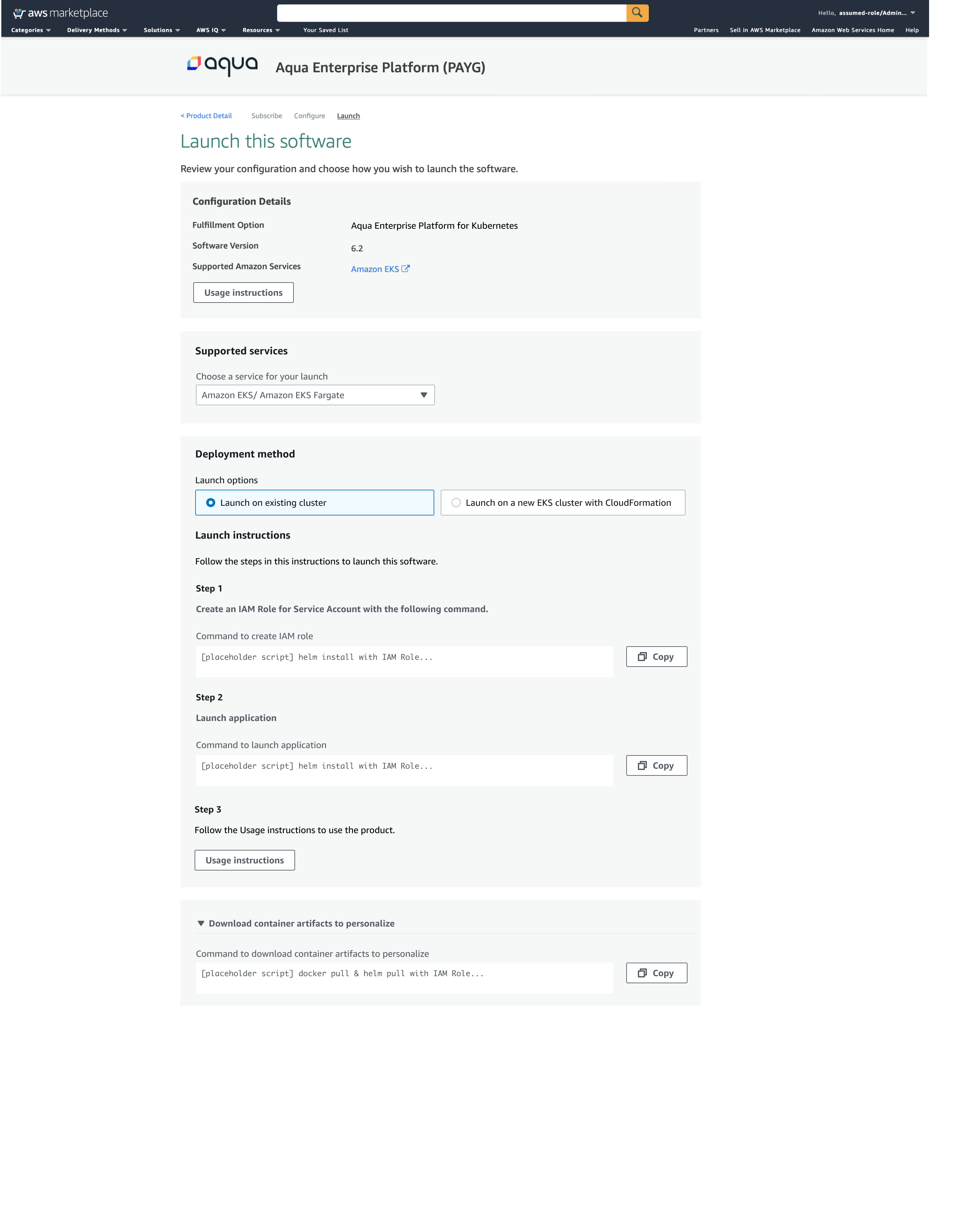
Launch page summarizes the configuration details chosen bu customer so far.
Customer must select a service that interest them for this deployment.
If customer selects Amazon EKS, then it provides them launch options such as Lunch on existing cluster, and Launch on a new EKS cluster.
A. Launch on existing cluster :
Many customer have their own clusters which they want to utilize for deploying the software.
The UI provides them clear steps/ instructions.
Step 1 - Customers copy the scripts which Jas IAM role policies, they can paste in their running code.
Step 2 - This step has helm chart. This chart can be copied in pasted in running code.
Step 3 is to follow the instruction provided by the seller.
Configure manually
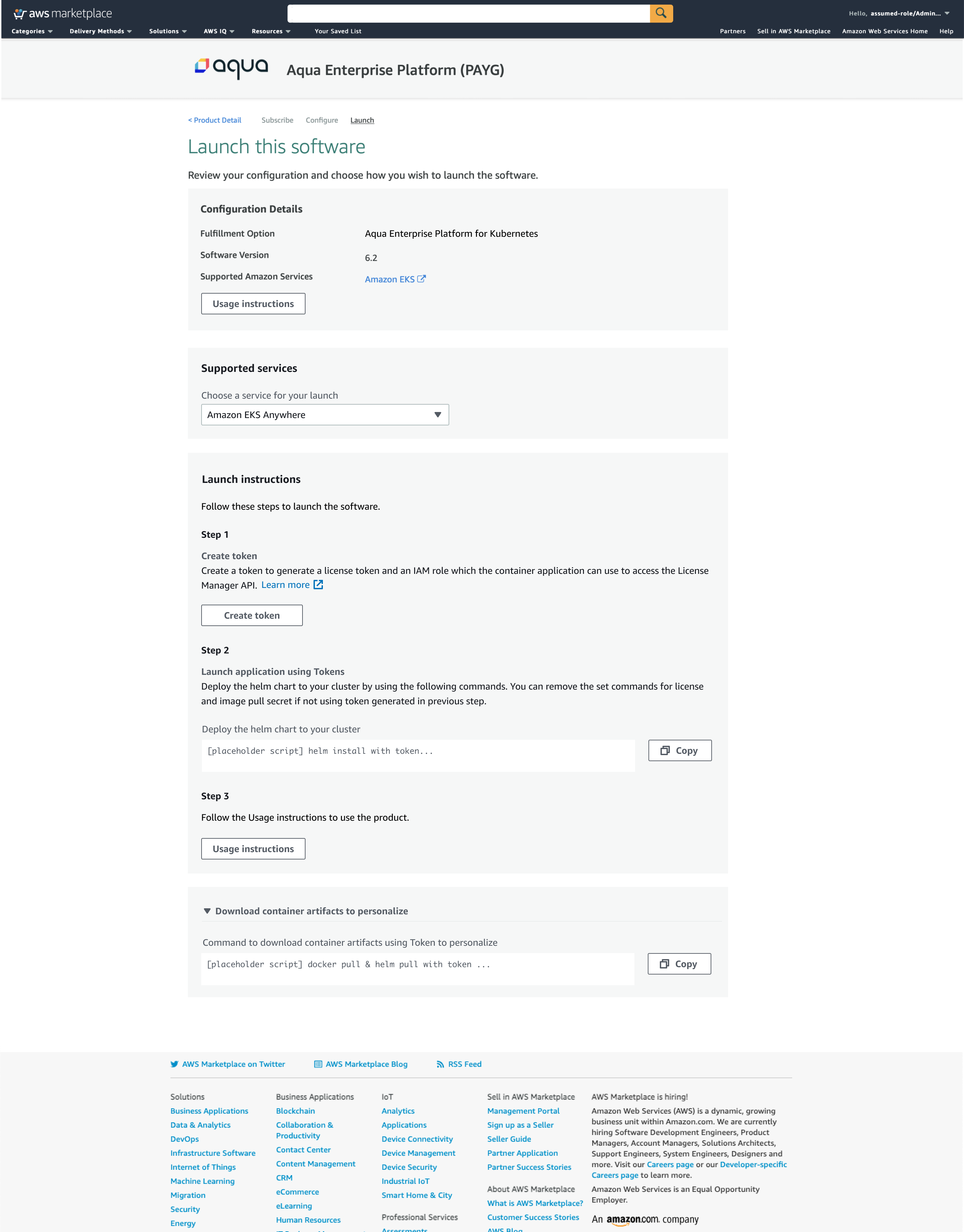
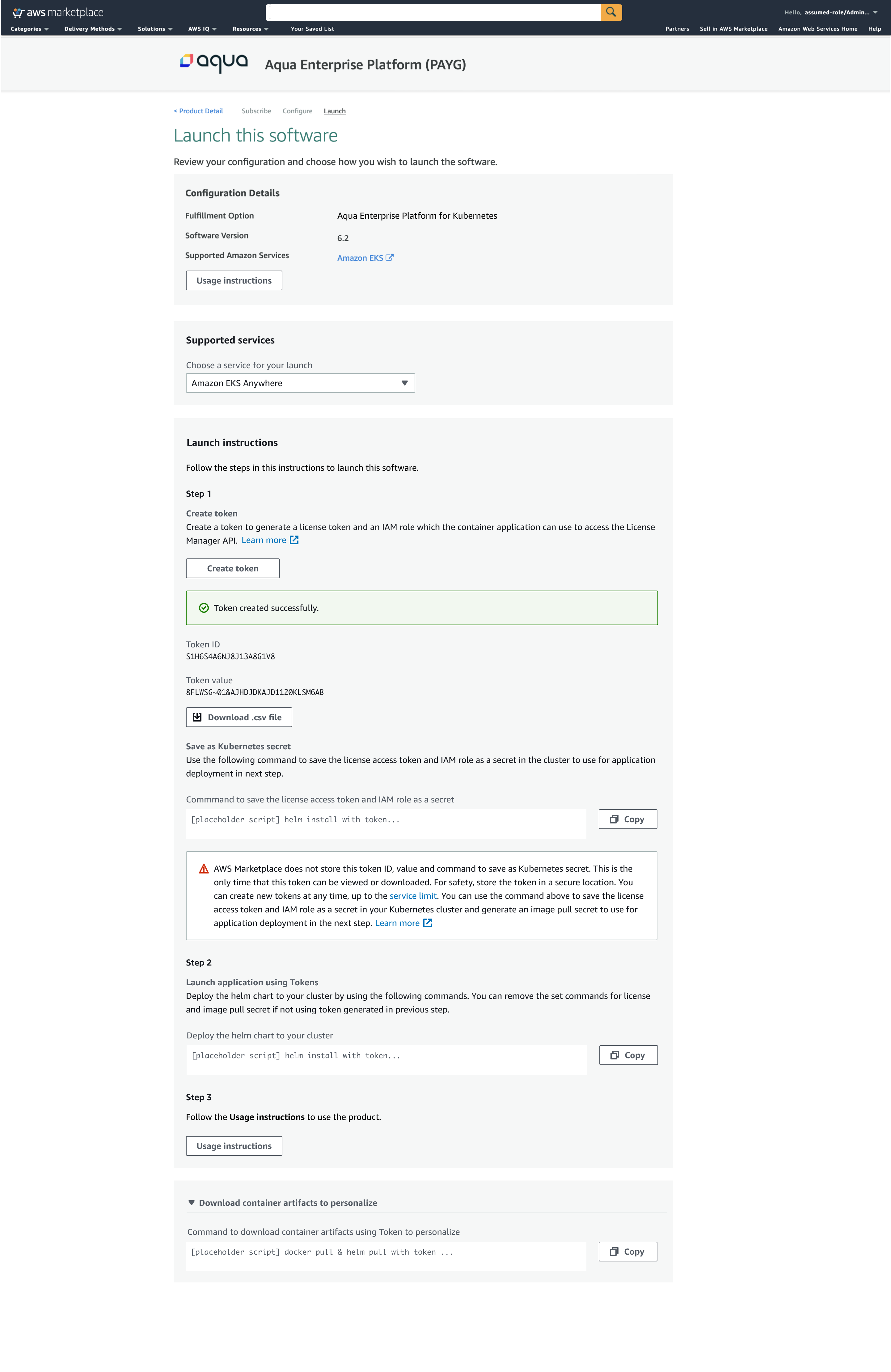
Launch with supporte service - Amazon EKS Anywhere
With this option there are 3 steps customer must follow.
Step 1 is to create token. This step provides user with a token ID an Value, along with secret to save Kubernetes.
Step 2 - Provides customer with command to deploy the helm charts to their cluster.
Step 3 - Follow usage instructions.
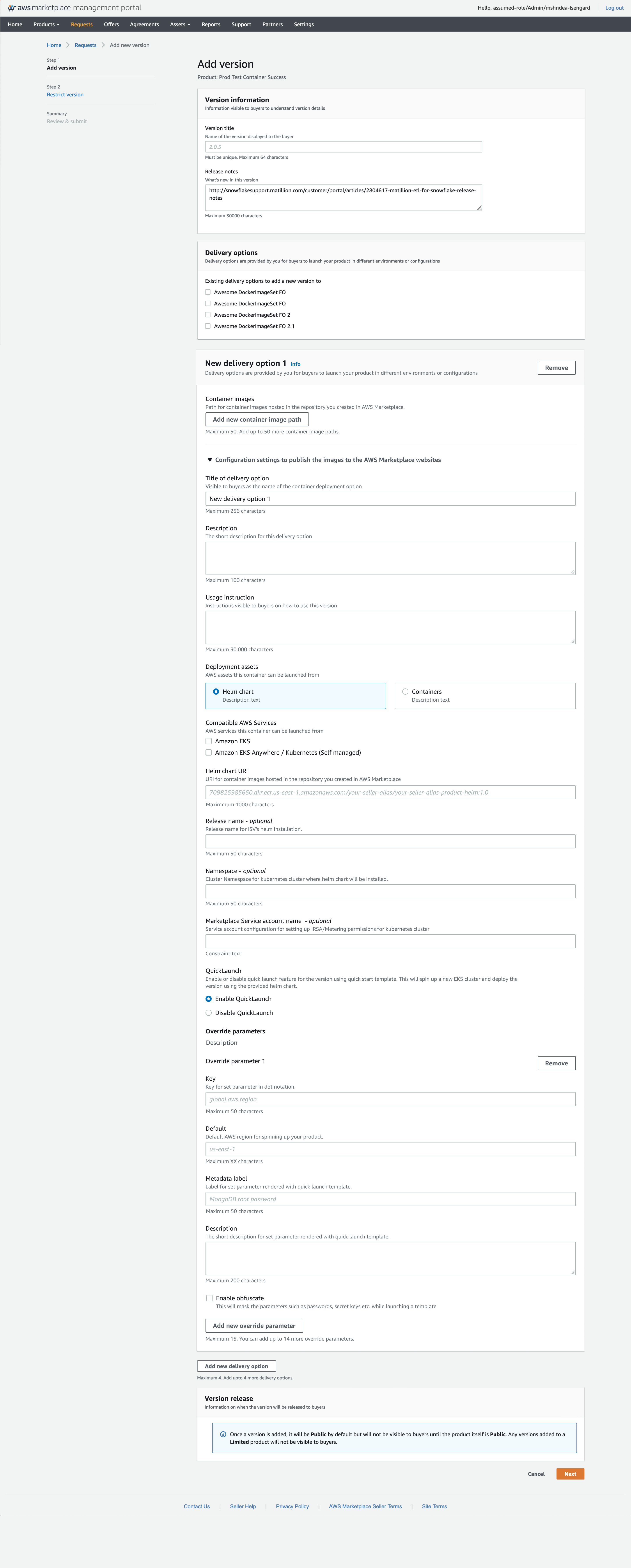
Add new delivery option
The UX shown here demonstrates the customer experience to enable helm delivery option.
ISV can select maximum up to 4 delivery options. Each delivery option refers to the container images hosted in the repositories created within AWS Marketplace by ISV.
Once they provide delivery option description and usage instruction, they must choose 'Helm chart' as deployment asset. By doing so, ISV gets an option to choose compatible AWS service such as EKS, EKS A or Kubernetes self managed.
ISV must provide Helm chart URI, enable or disable QuickLaunch and define override parameters.